Step 1
Download the app and create an account
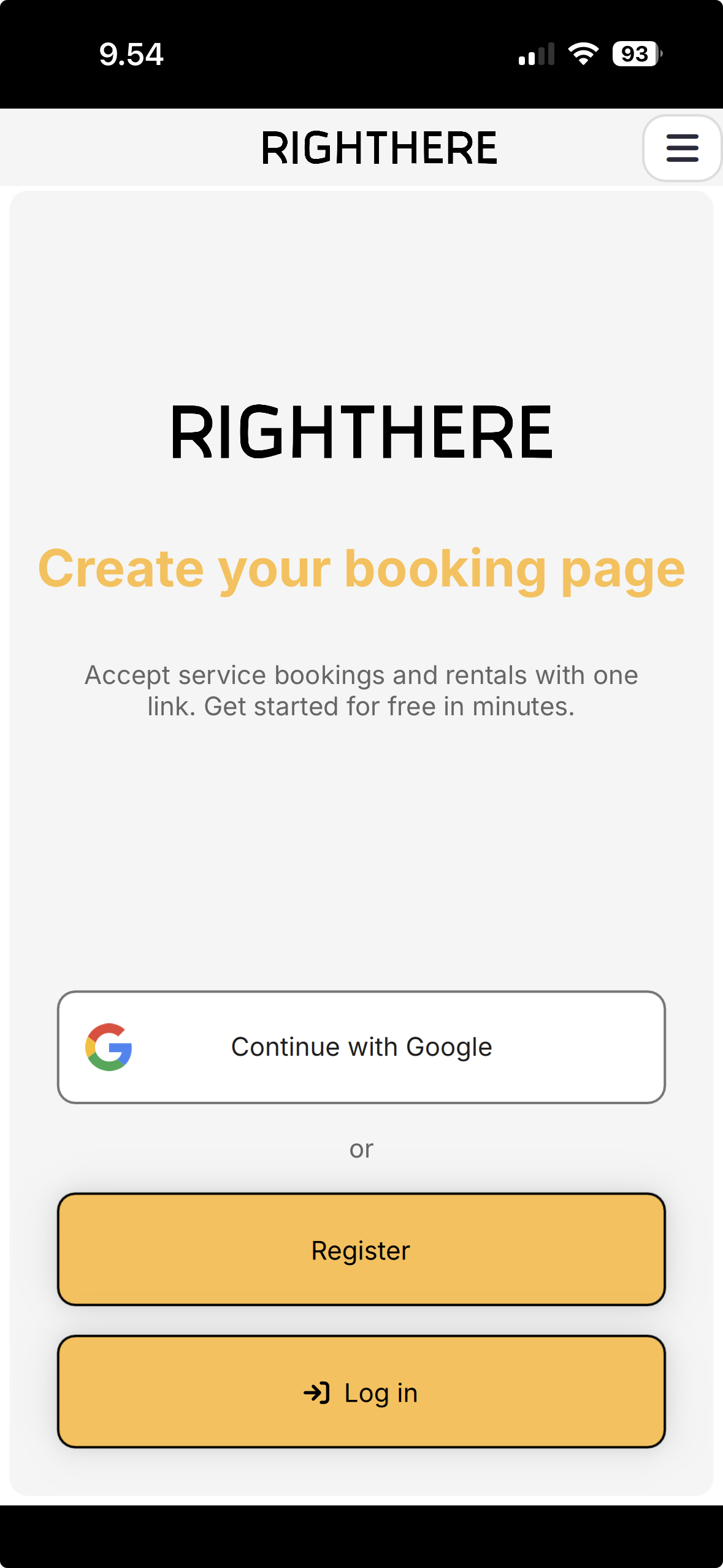
Download Righthere from the App Store or Google Play. Open the app and choose Register, Log in, or Continue with Google. Your email address becomes your username.
This guide walks you through creating a service booking calendar in the Righthere mobile app. The guided setup takes only a few minutes — no technical skills required.
Finnish version: Ohjeet
Step 1
Download Righthere from the App Store or Google Play. Open the app and choose Register, Log in, or Continue with Google. Your email address becomes your username.
Step 2
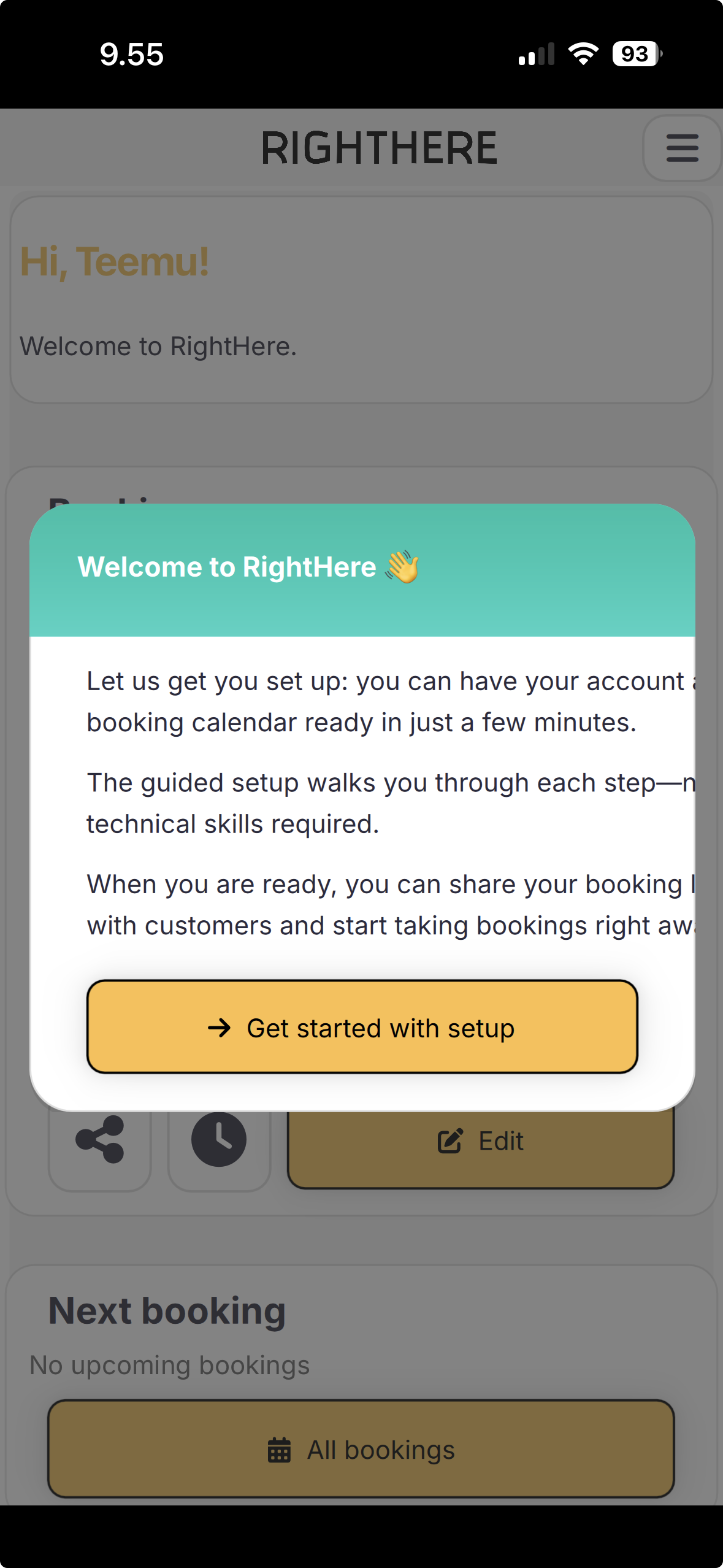
After signing in, you will see a welcome message. Tap Start setup — the guided wizard helps you create your booking calendar step by step.
Step 3
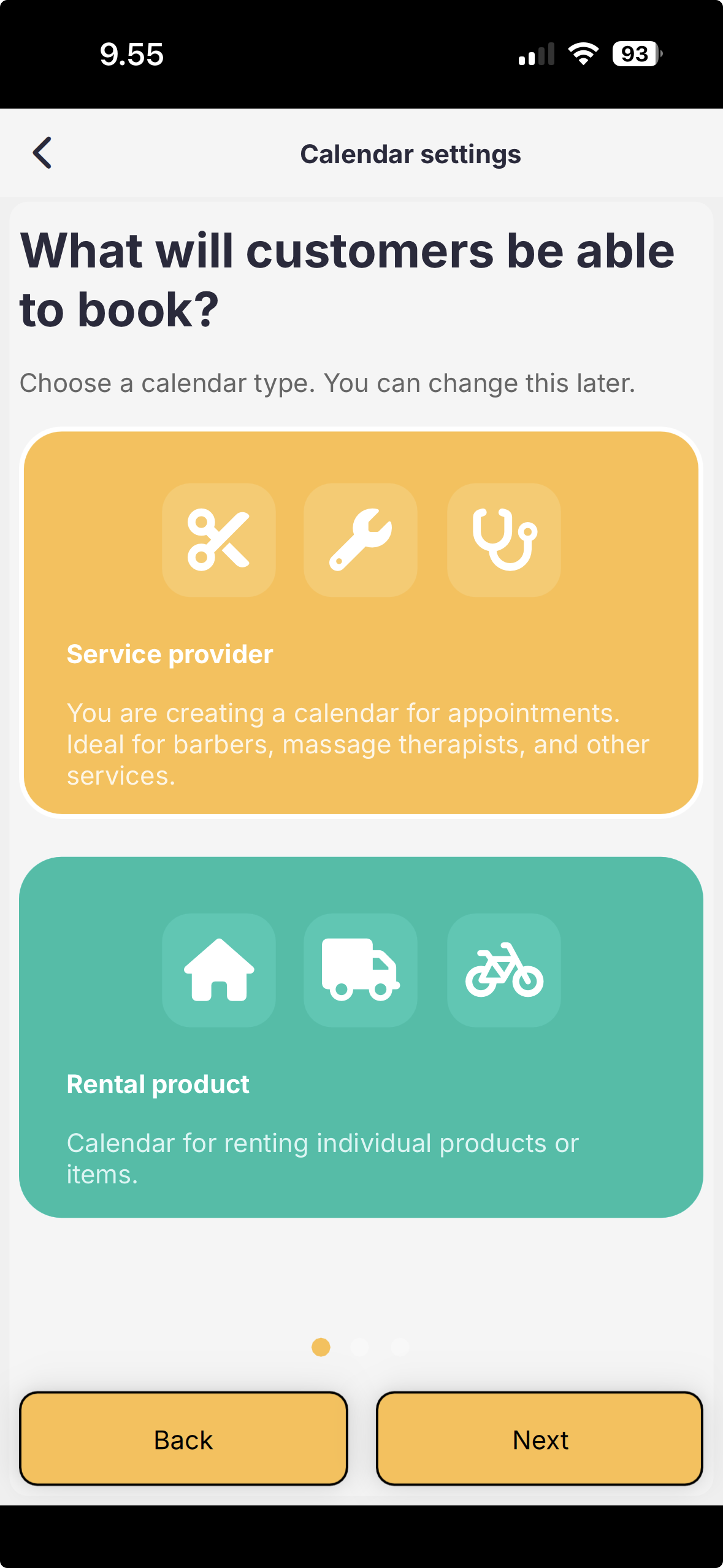
Select Service provider if you offer appointments (e.g. barber, massage, nails). Choose Rental product for renting individual items or properties. You can change this later.
Tap Next to continue.
Step 4
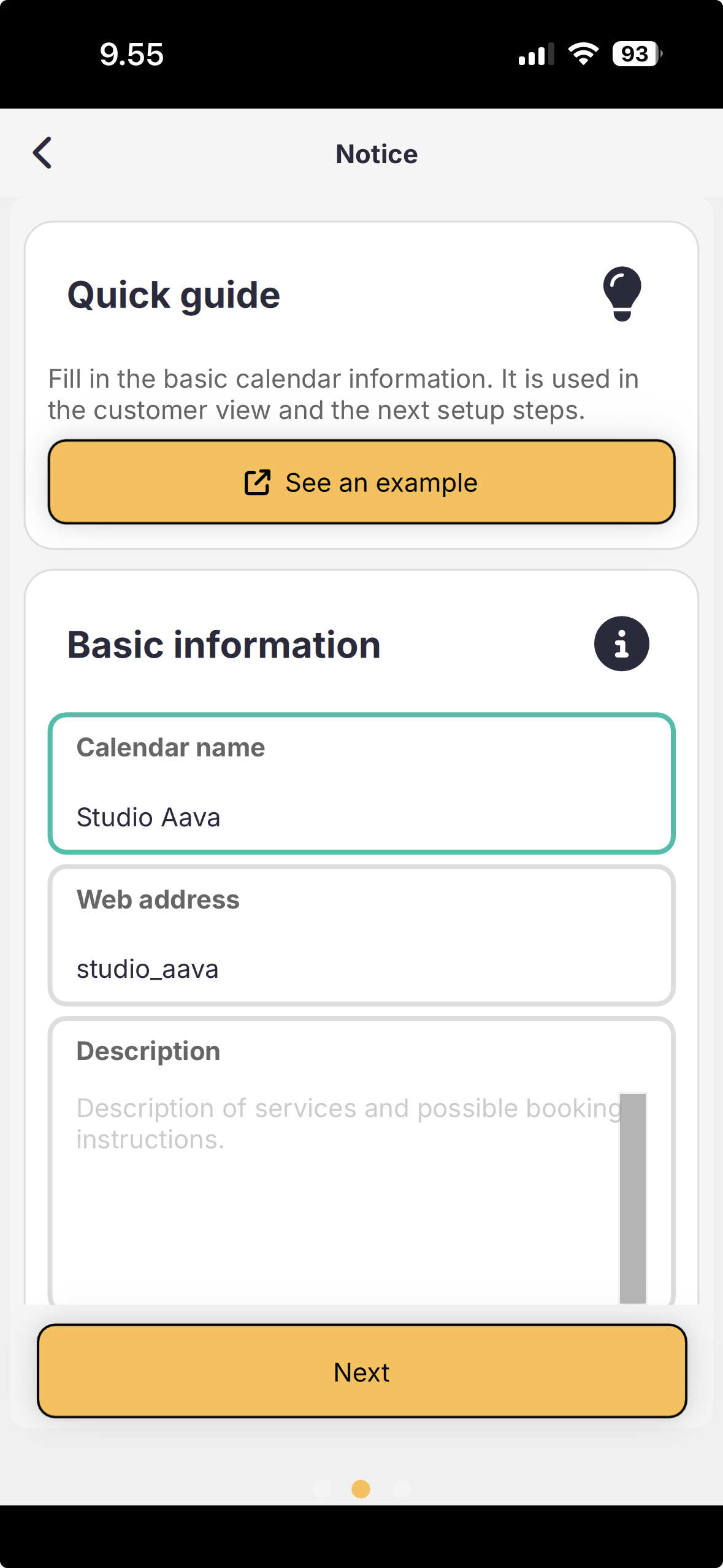
Enter your calendar name and a short description. The booking URL is generated automatically from your business or calendar name — for example, Studio Aava becomes studio_aava.righthere.fi (letters are lowercased, spaces become underscores). You can edit it if you want while setting up; it must be unique and use only lowercase letters, numbers, underscores, and hyphens (3–40 characters).
Hint text guides you through the form — tap See example for inspiration.
Tap Next when the basics are filled in.
Step 5
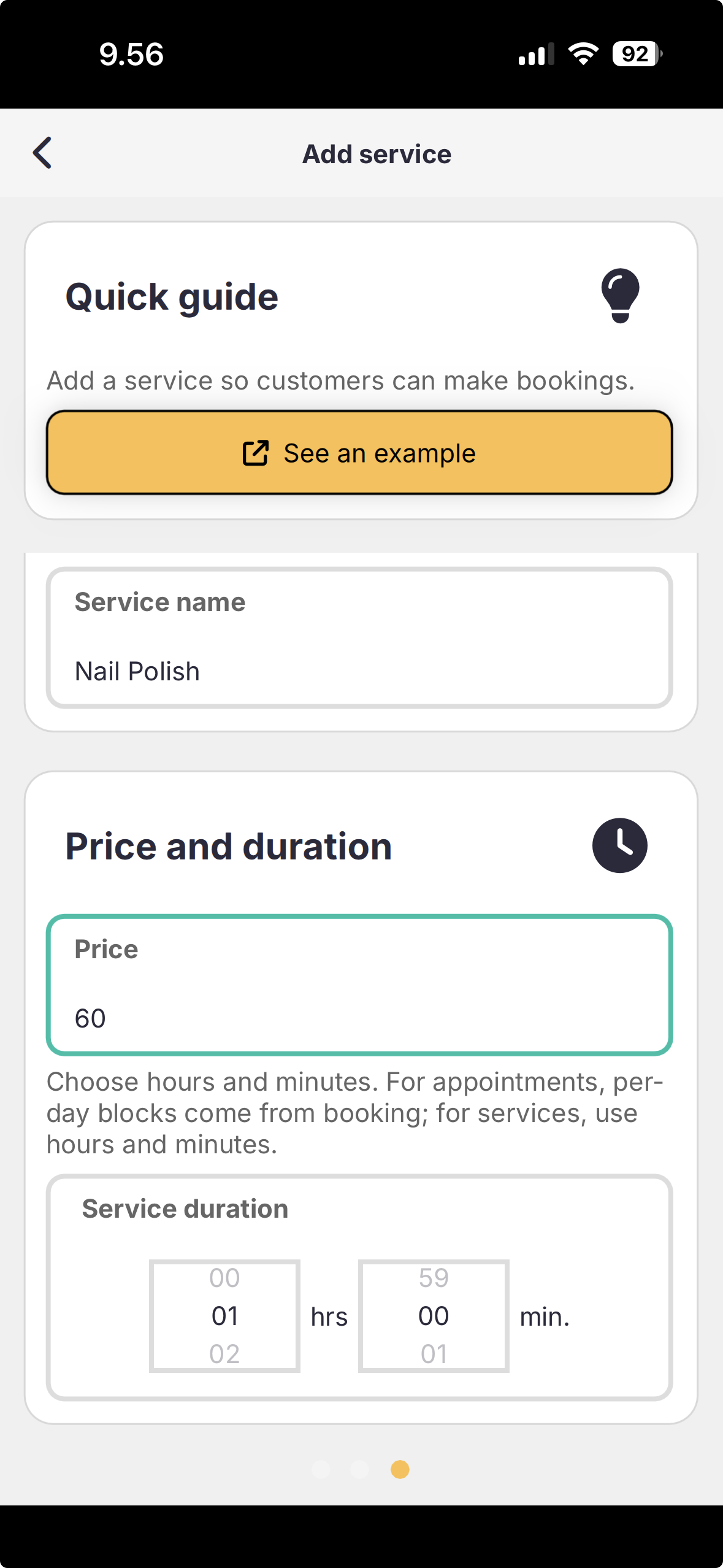
Enter the service name (e.g. Sculpted nails), price, and duration in hours and minutes. Customers will book this service online. You can add more services later.
Save the service and continue to the final step.
Step 6
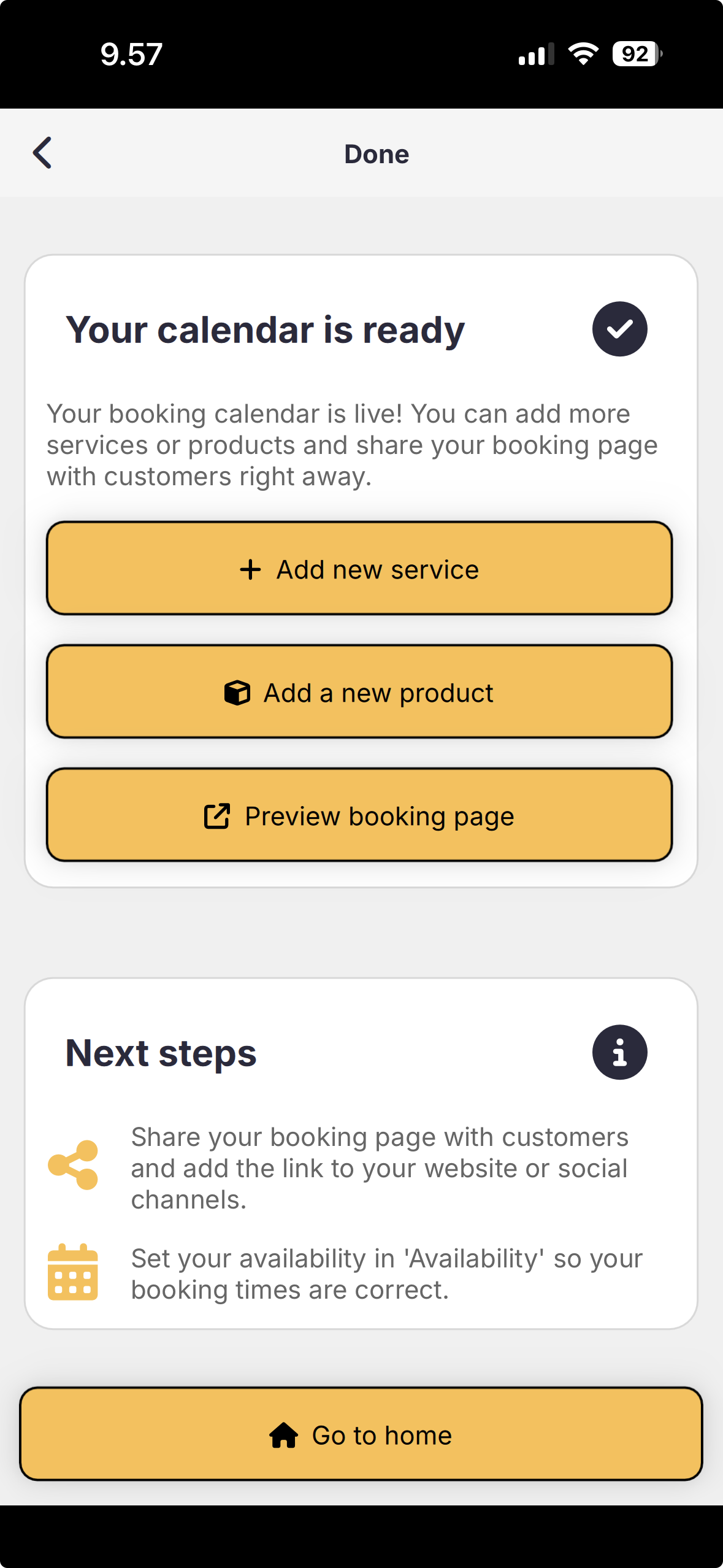
Your booking calendar is published! You can preview your booking page, add more services, or go to the home screen.
Before sharing the link with customers, set your available times under Availability so booking slots are correct. Then share your booking page on your website, social media, or in messages.